How we built olddogs.ai with lots of agents but zero slop
A few small tools let us turn agents loose and build a site we’re proud of.

Everything on our homepage was made by prompting agents. These four tools are how we kept it uniquely ours, with zero slop.
1.Have your agent draw, then code
Just diving in and letting an agent start coding can get you trapped in the rut of the first design it considers (which probably looks a lot like everybody else’s).
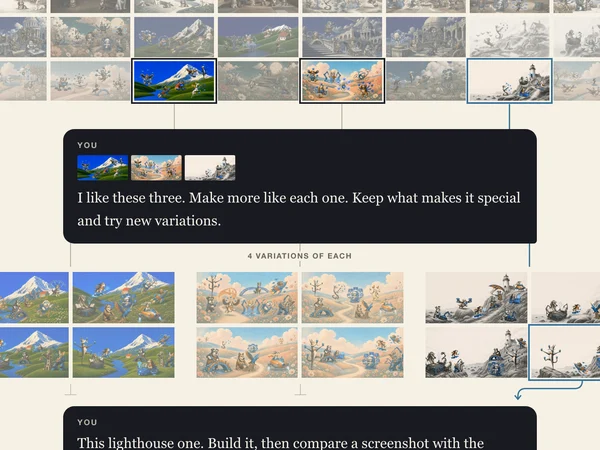
With the right prompting, generative image models are incredible at exploring design space. These days we’re constantly going through a loop of generative imaging to explore alternative designs, picking our favorites and asking for refined image options, then letting models implement in code, and finally having them verify their work with screenshots.
We shared an agent skill for this workflow below. You can repeat the loop to your heart’s content, prompting for different design vibes, and refining vision without constraining yourself in code. Free your agents’ artistic talents!
How
- Ask for 5–10 genuinely different design directions using generative imaging, not coding.
- Pick promising directions, ask for refined iterations.
- Let your agent build.
- Ask your agent to use screenshots to compare their work to your chosen mockups.
See it
Show me very different visual worlds for our homepage: old dogs learning new tricks. Different styles, moods, and materials. Don’t build anything yet.
34 options generated



I like these three. Make more like each one. Keep what makes it special and try new variations.
4 variations of each
This lighthouse one. Build it, then compare a screenshot with the mockup until they match.
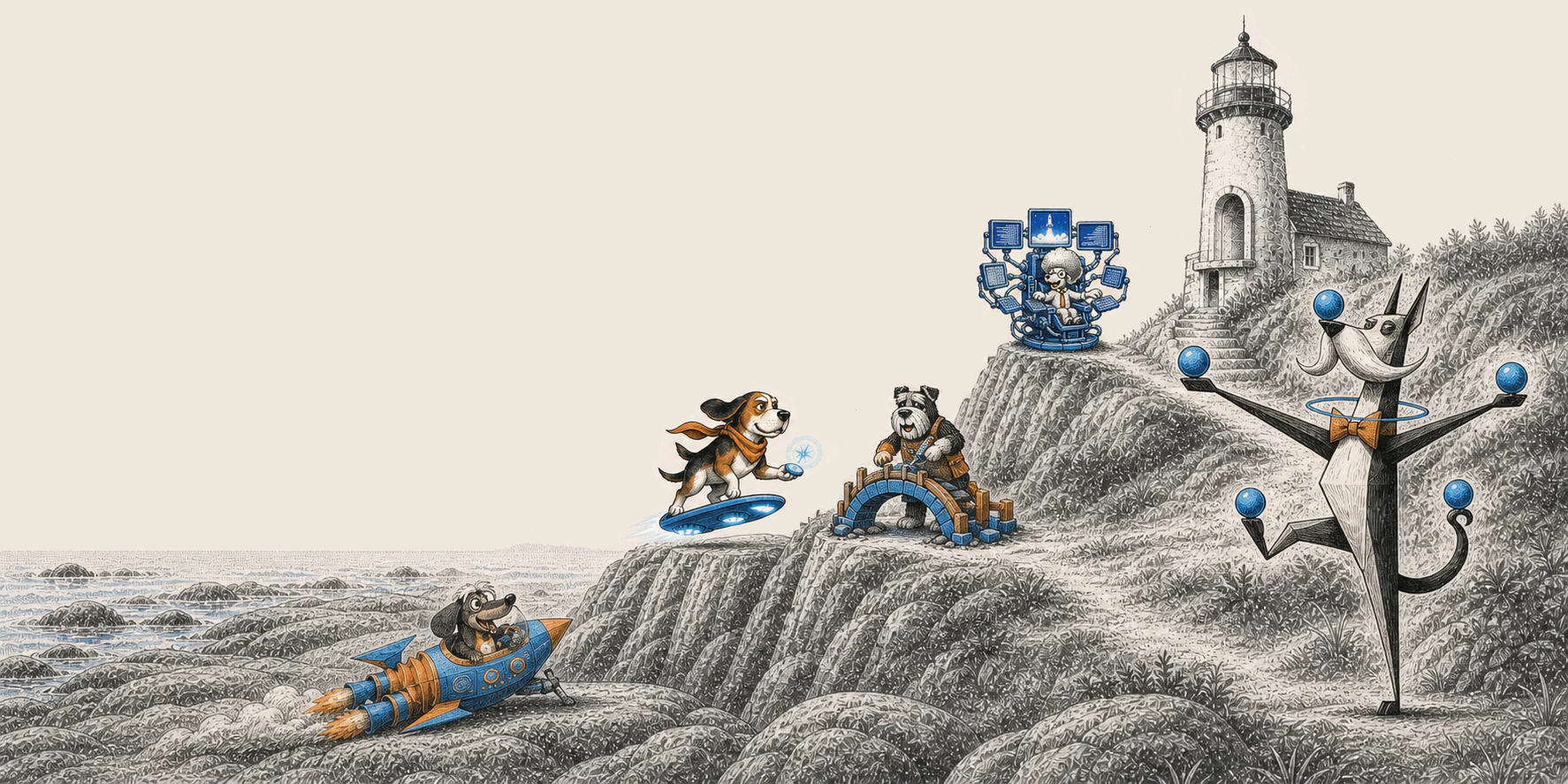
The built homepage
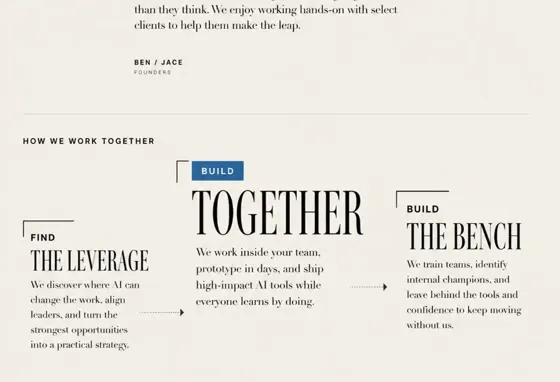
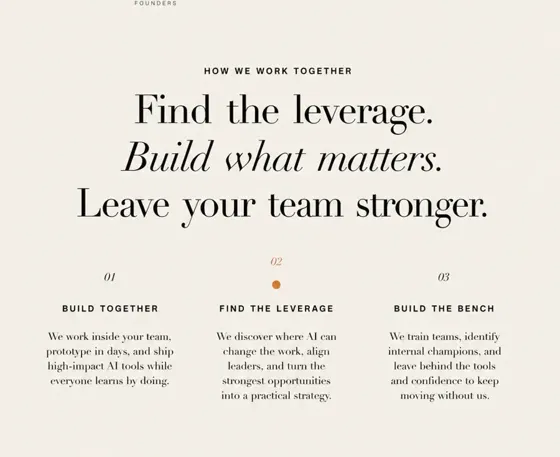
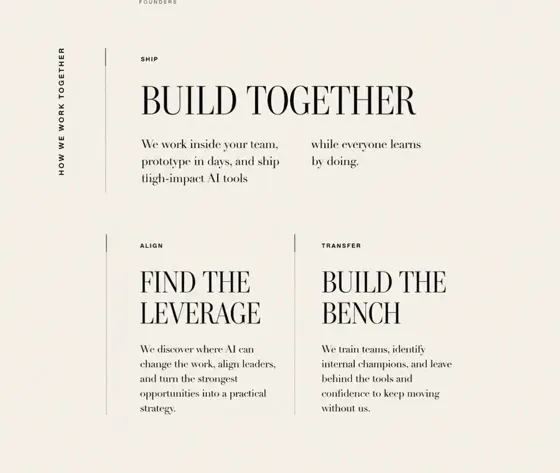
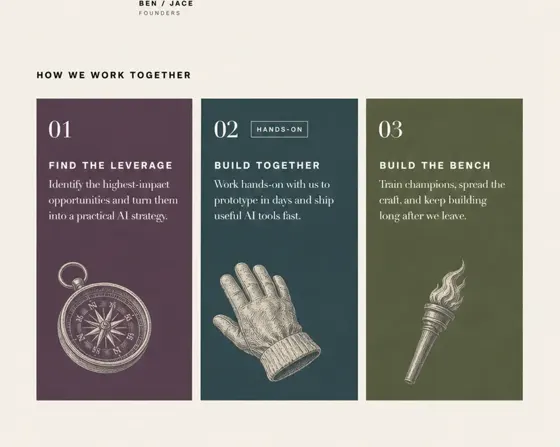
We reused this design-build loop for every section of the page. Each time the image generator would use screenshots of the currently-built page while exploring a bunch of novel designs for the next section we were focused on.
Overall, this workflow produced an amount of design exploration and variety that would’ve bordered on completely unreasonable in the before times.
See each section we built:
Section 1 of 8
Logo rail
16 options generated3 design/build rounds

















Section 2 of 8
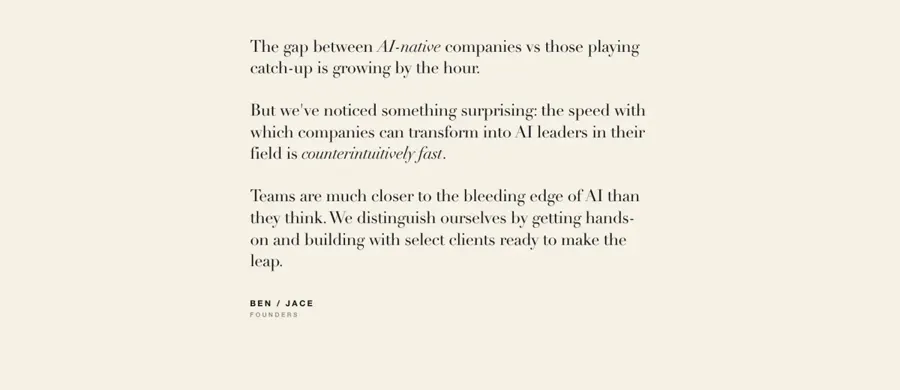
Founder note
12 options generated3 design/build rounds












Section 3 of 8
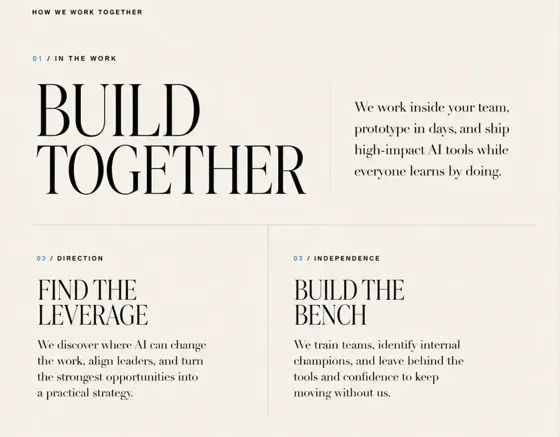
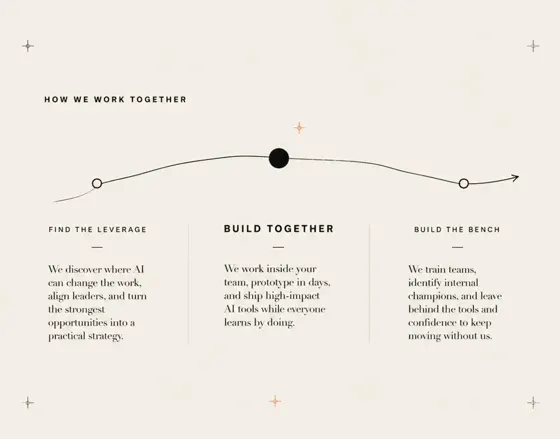
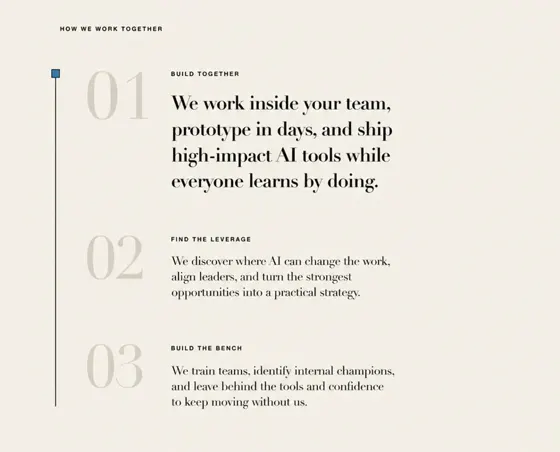
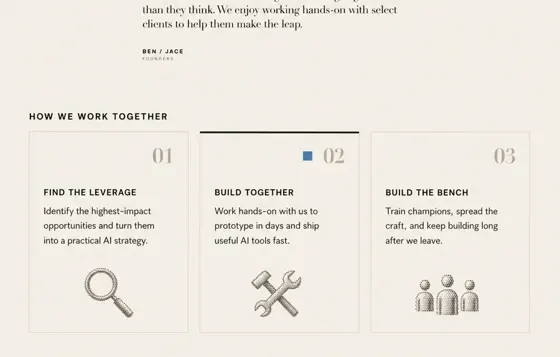
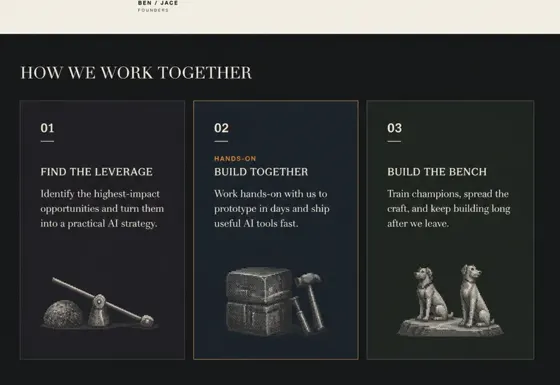
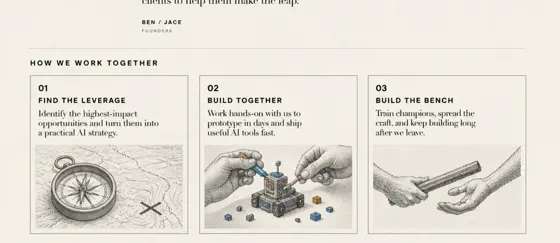
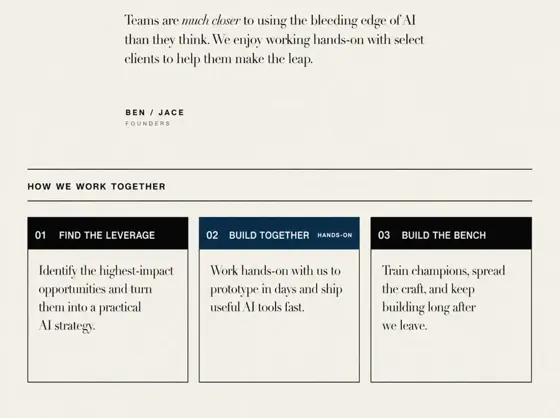
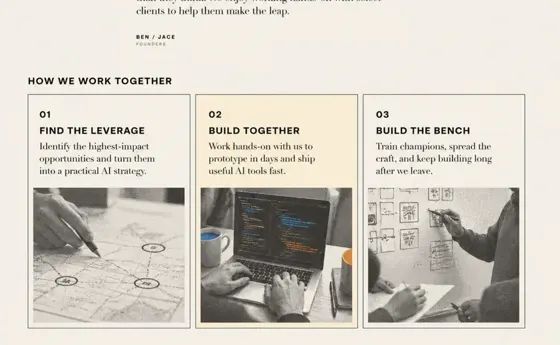
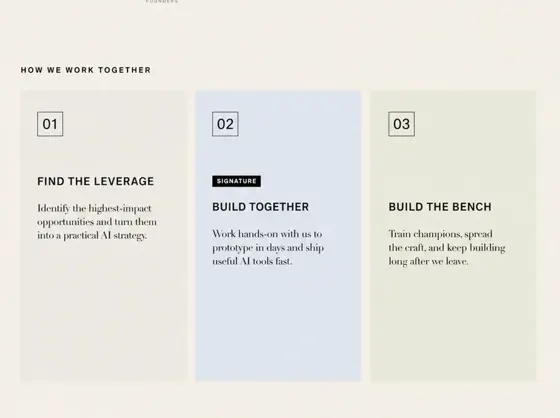
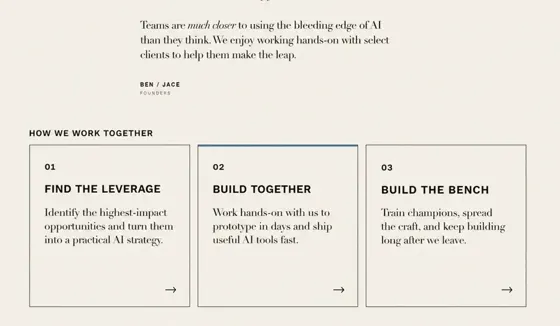
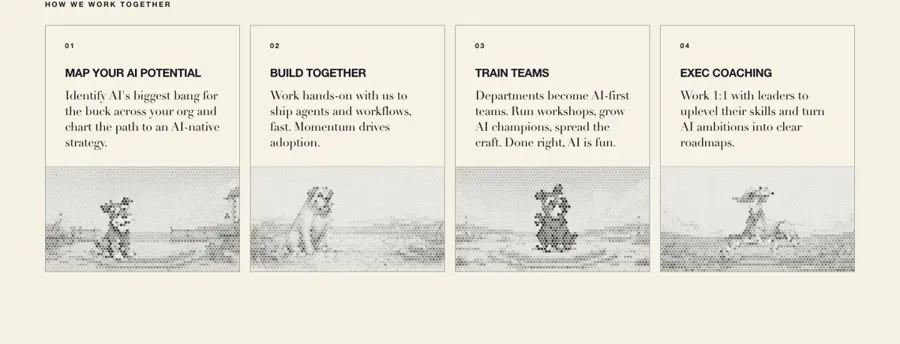
How we work together
16 options generated2 design/build rounds


Section 4 of 8
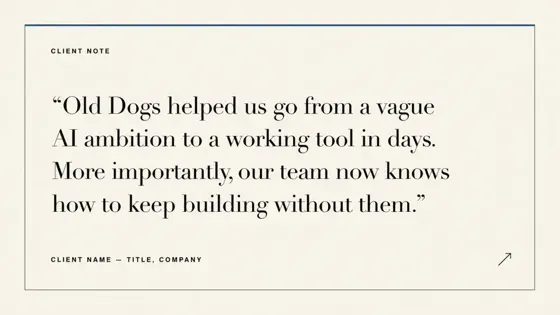
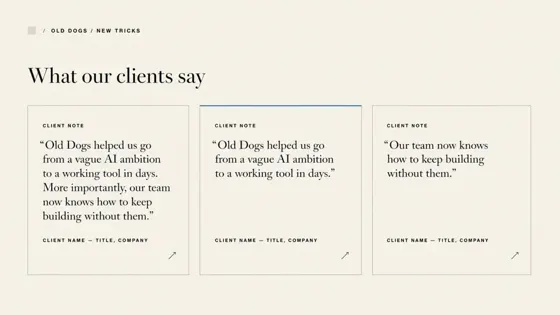
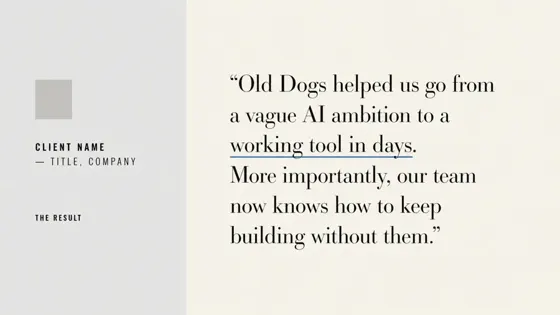
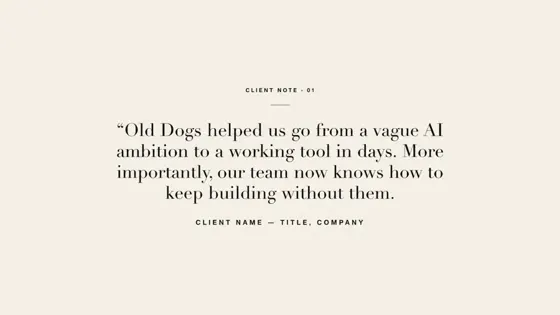
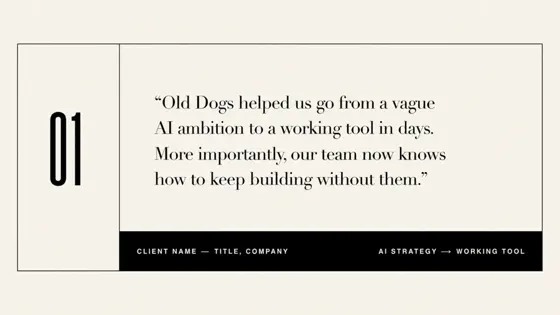
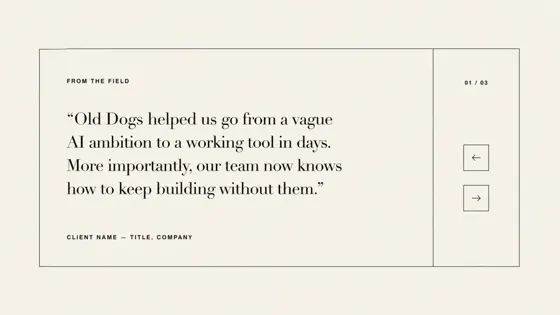
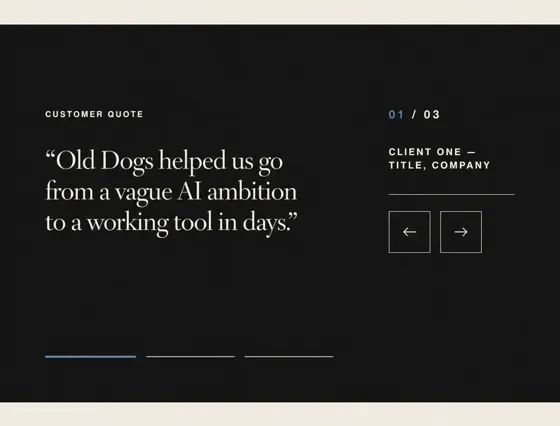
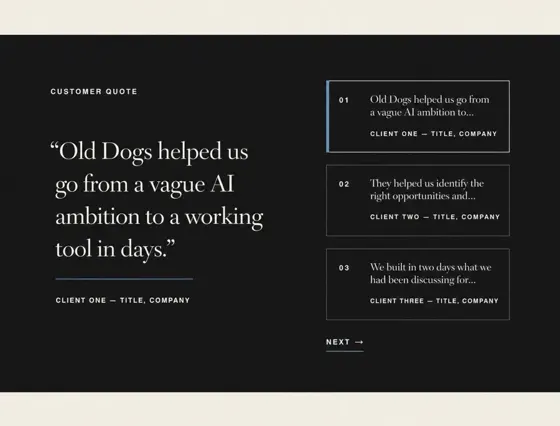
Customer quotes
11 options generated2 design/build rounds




Section 5 of 8
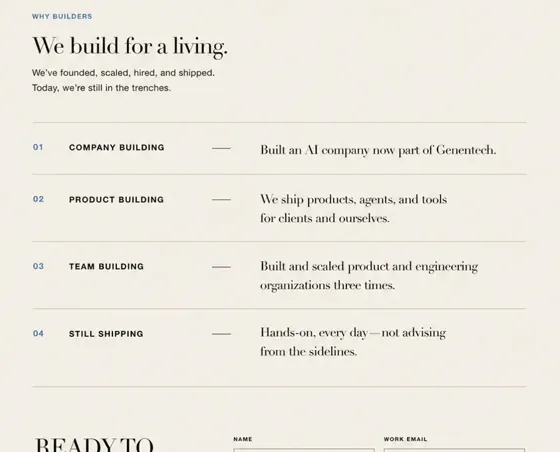
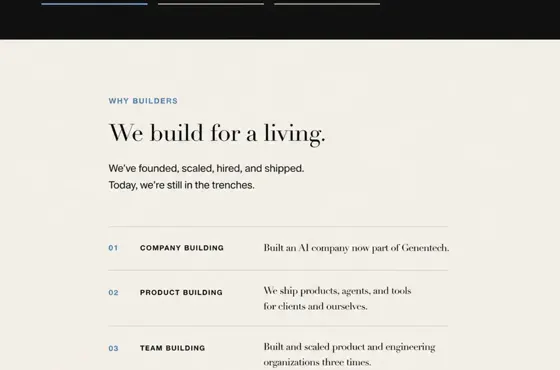
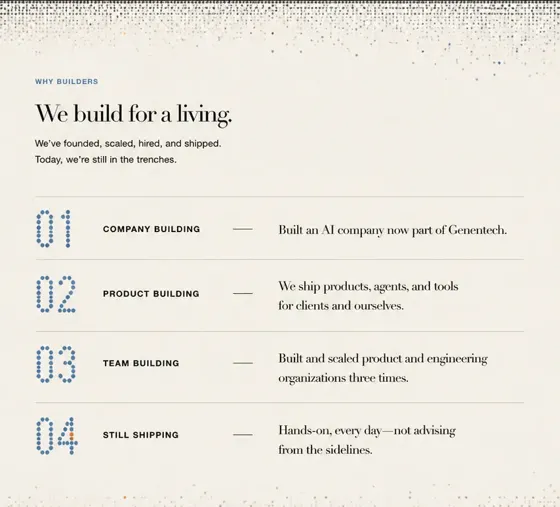
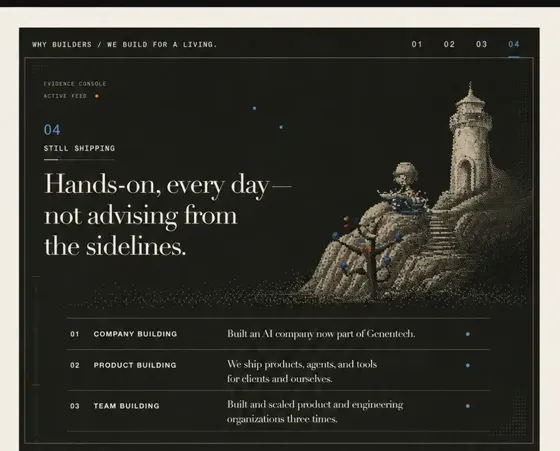
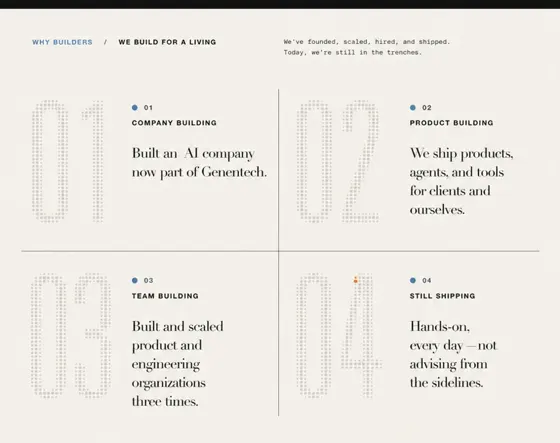
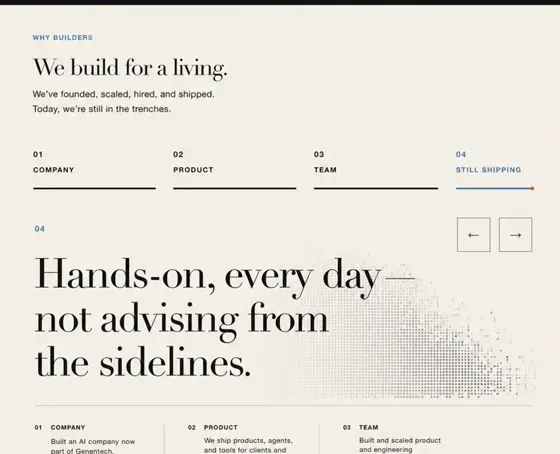
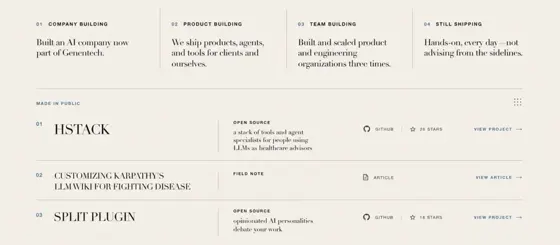
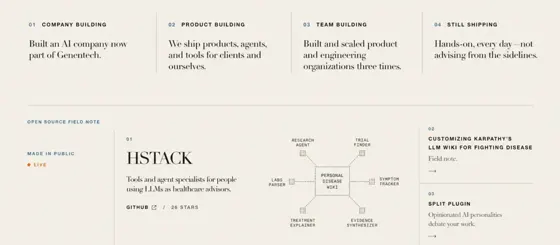
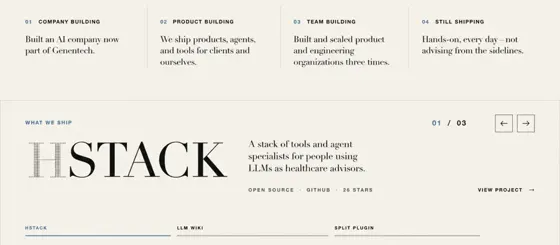
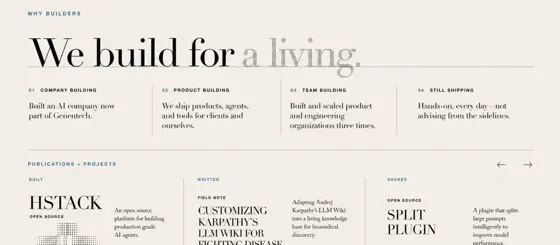
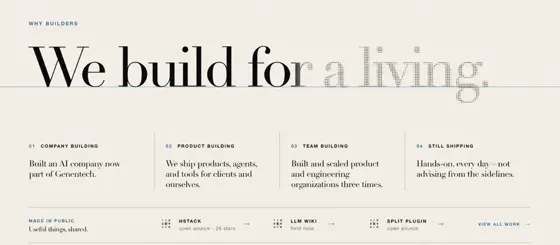
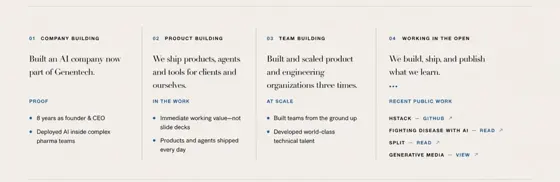
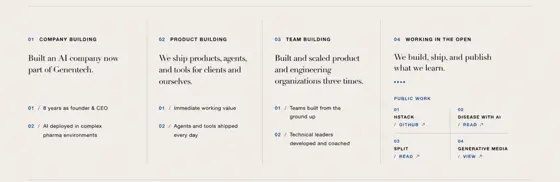
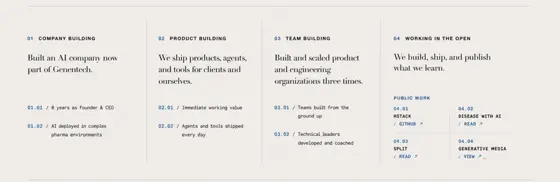
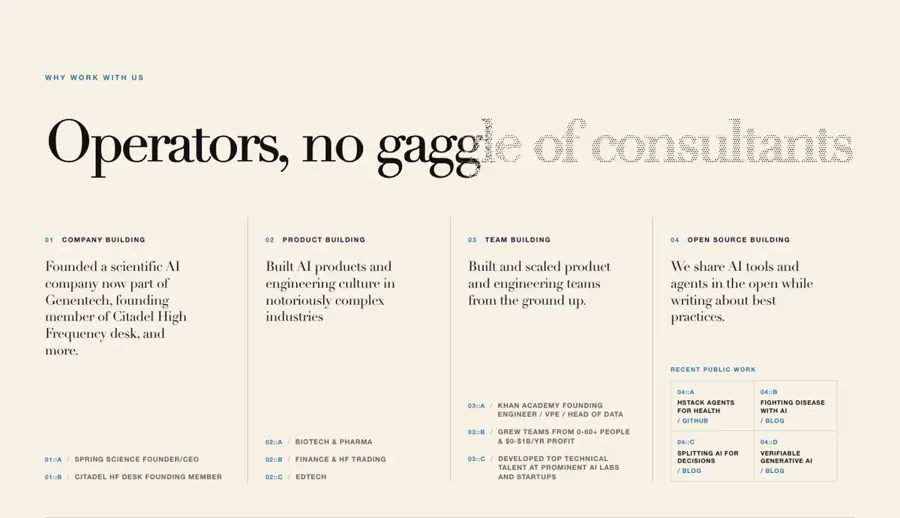
Why work with us
38 options generated7 design/build rounds

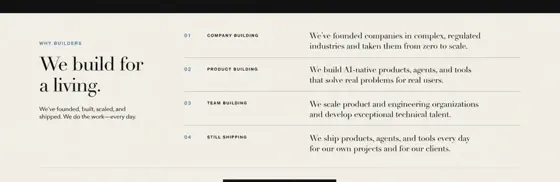
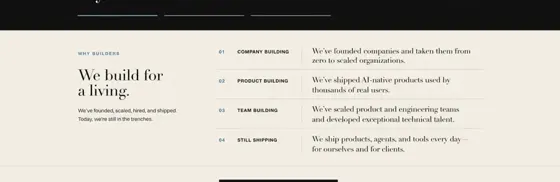







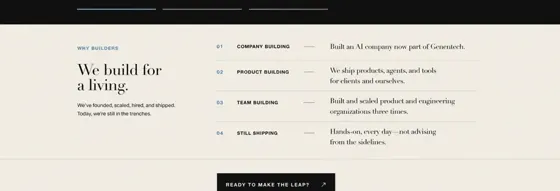
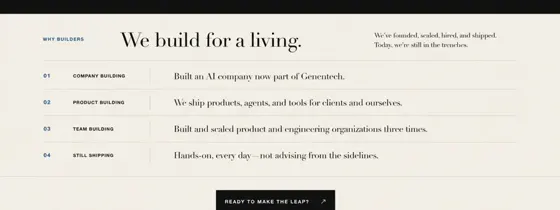






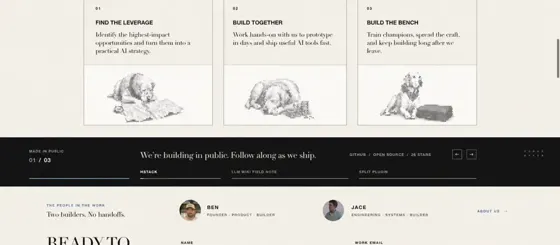
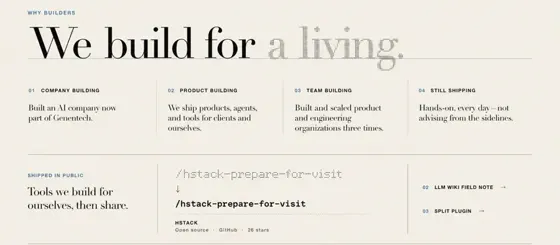

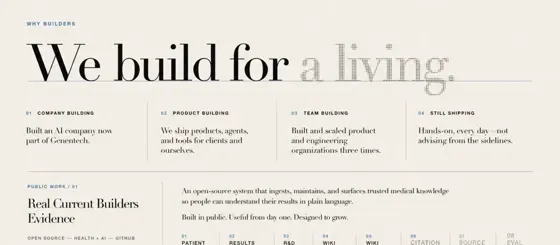
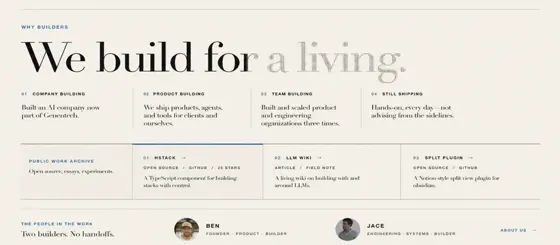

Section 6 of 8
The team
38 options generated5 design/build rounds







































Section 7 of 8
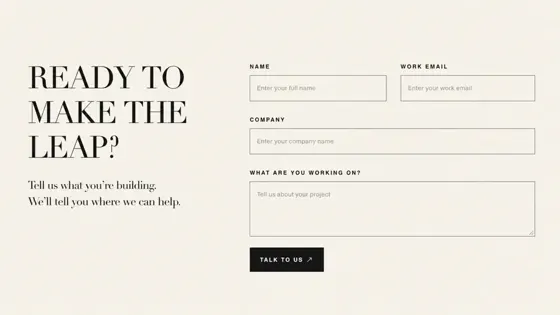
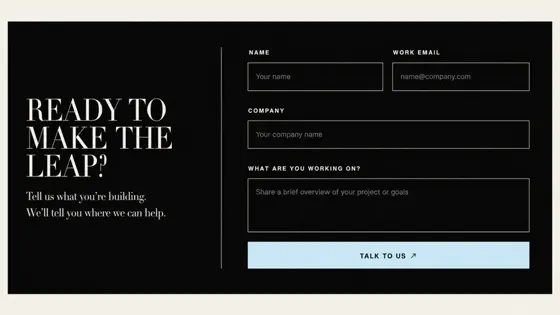
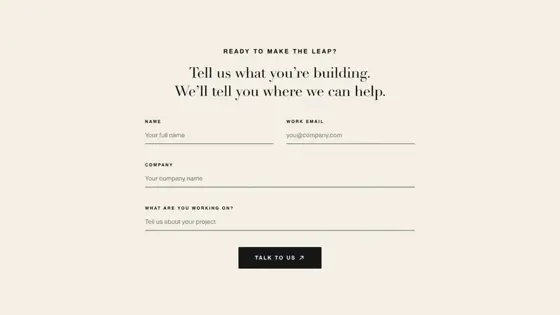
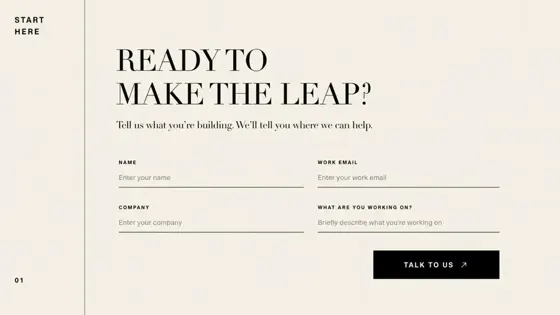
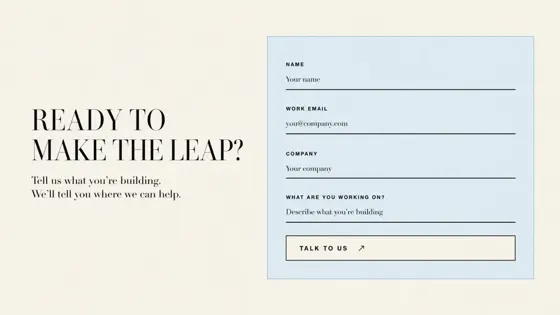
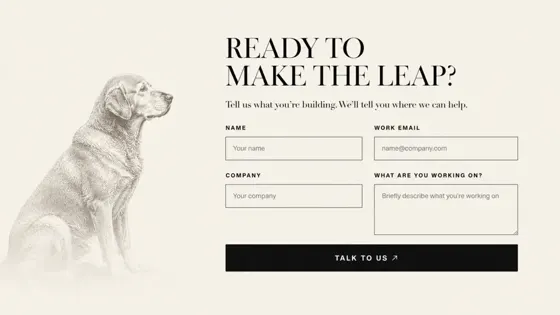
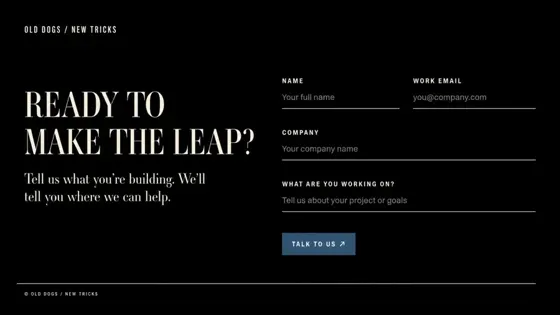
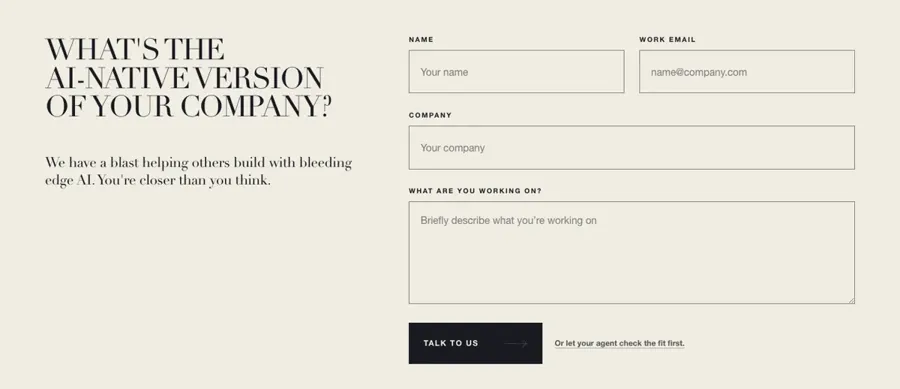
Contact form
8 options generated1 design/build round

Section 8 of 8
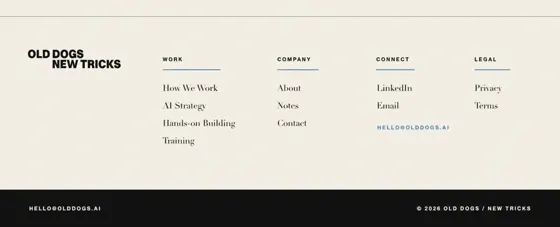
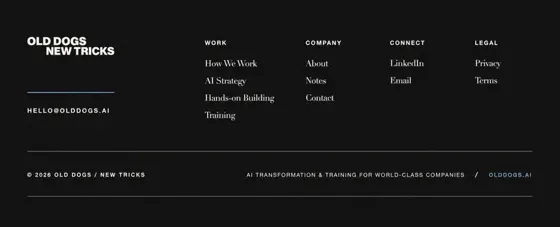
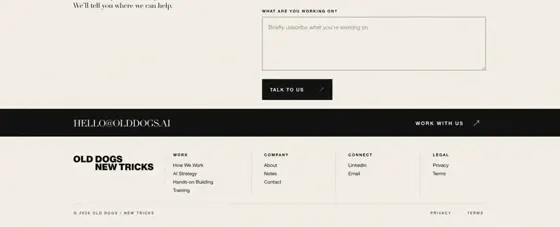
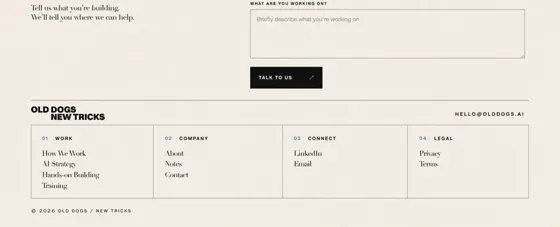
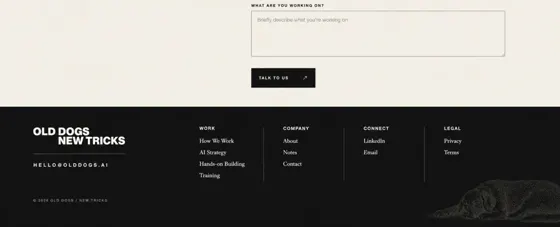
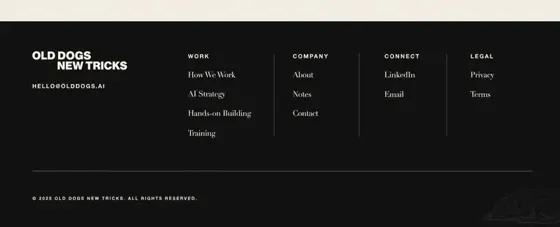
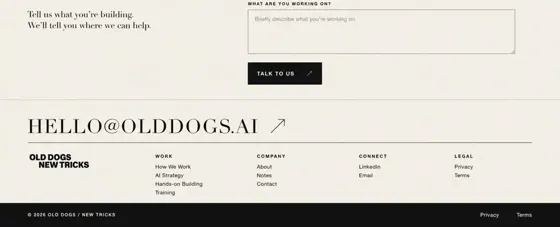
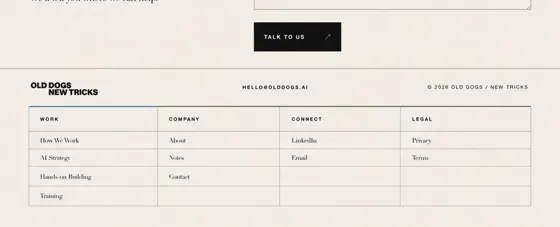
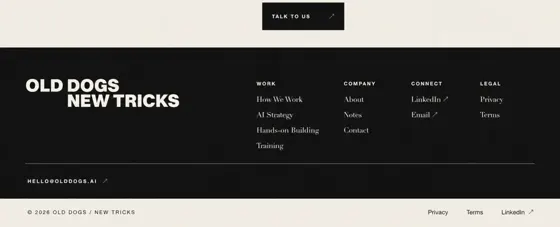
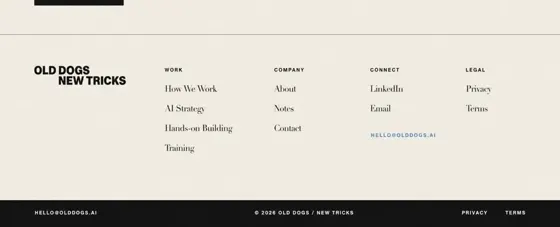
Footer
34 options generated4 design/build rounds




















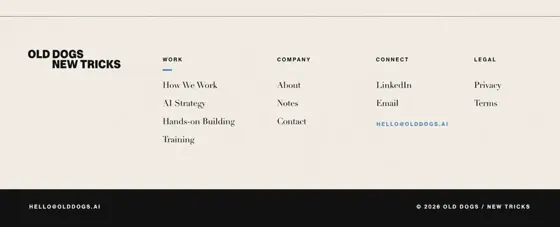
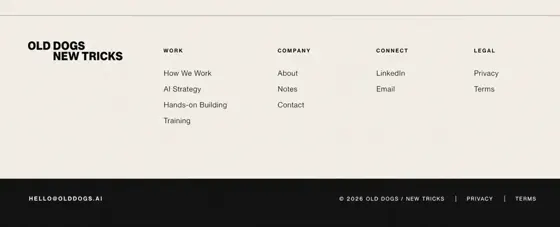
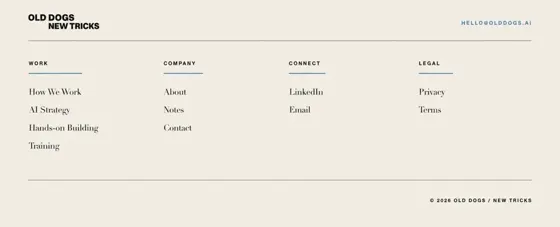
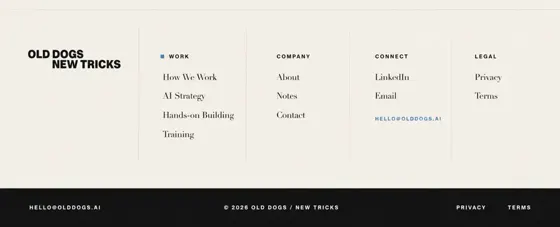

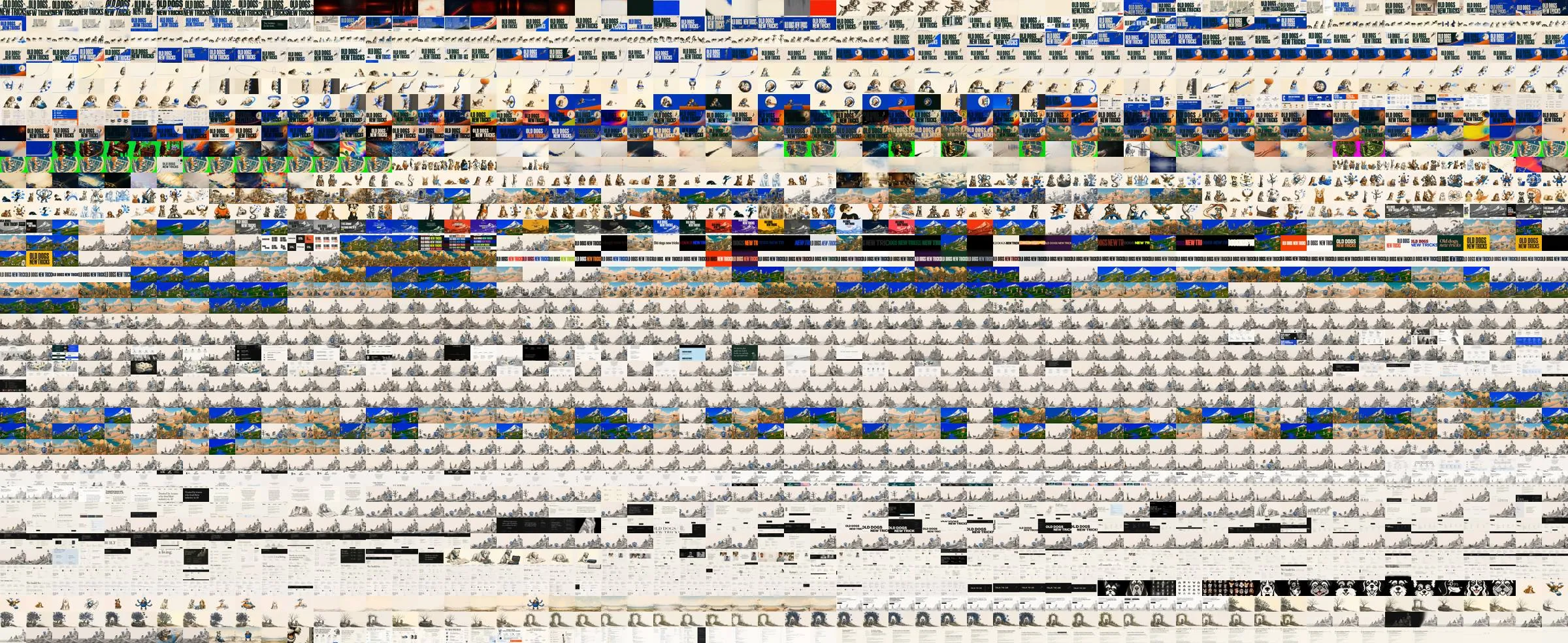
The whole project
All 2,460 images we generated, in order
Use it yourself
2.Build an in-app design jig
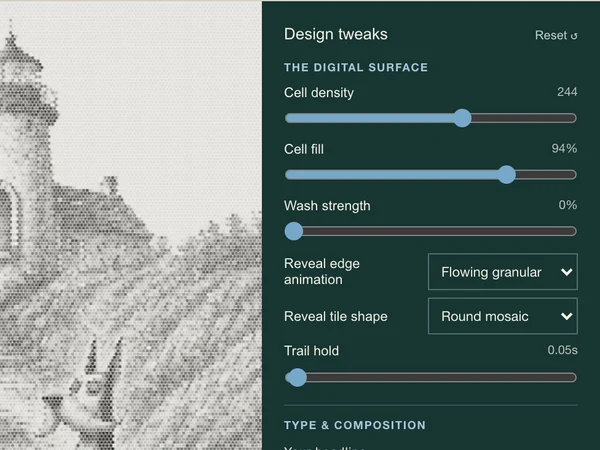
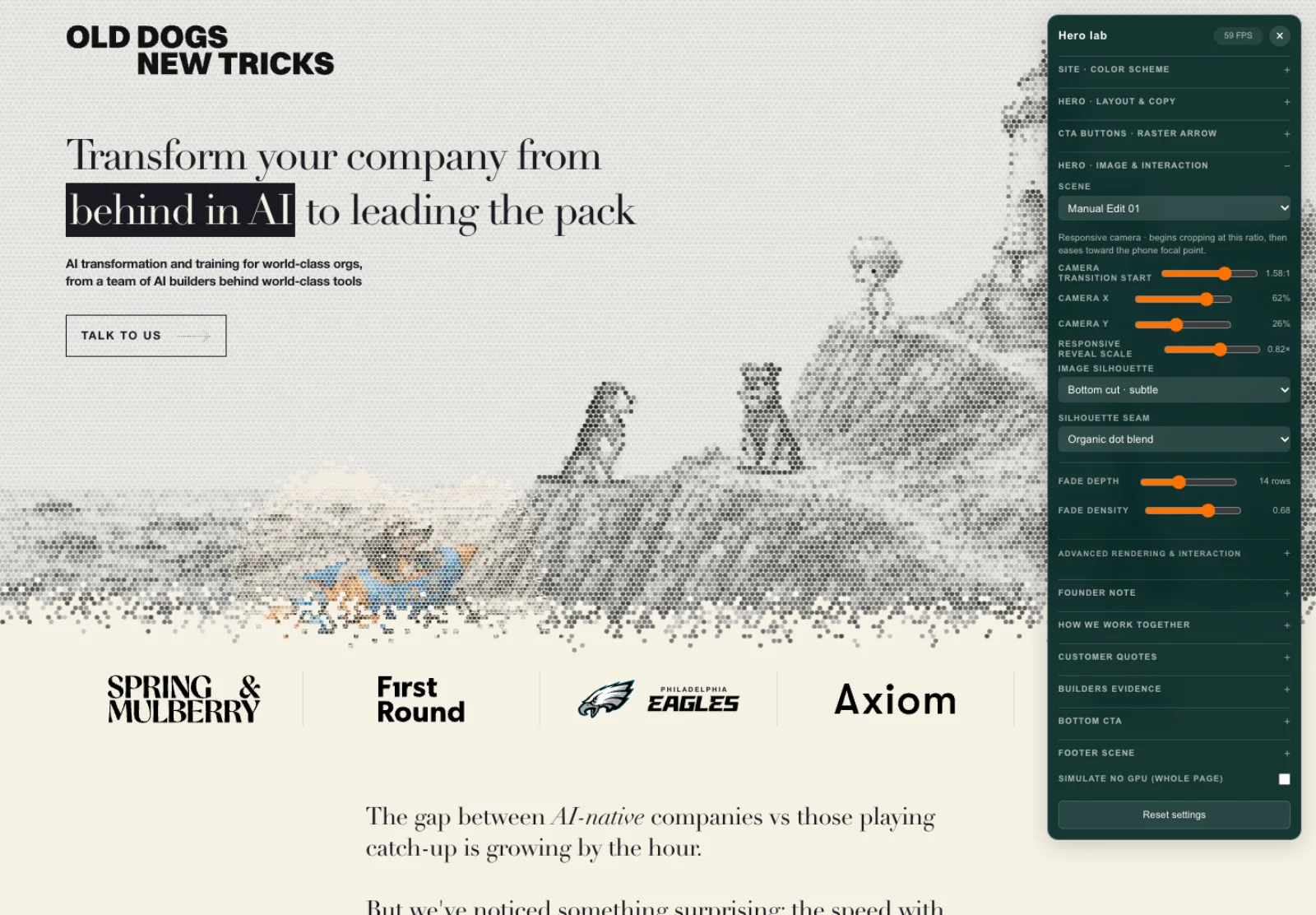
Both Every and Josh Puckett have leaned into the term “jig” to describe a small interface widget you build and embed in your app that lets you tweak a bunch of design parameters, watching things update live until it feels just right.
In this article we’re splitting the idea into two different “jig” patterns. The first are the in-app widgets you can think of as personalized mini-Figmas made just for your site. Or mini little airplane cockpit panels full of controls for tweaking parameters only your team will understand.
They’re perfect follow-up tools that let you dial in the exact feel of your app after the image<>code loop has generated your chosen interface. We used this in-app design jig extensively to get the feel of our retro animated dog transitions just right.
How
- Ask your agent for a dev-only panel of controls to tweak all sorts of design parameters on the page.
- Keep adding settings to it as you build.
- Ask for an easy way to sync your changed settings back to the committed code.
See it
Transform your company from behind in AI to leading the pack
What goes back to Codex
{
  "headline": "Transform your company\nfrom behind in AI\nto leading the pack",
  "layout": "quietLeft",
  "typeScale": 1,
  "density": 55,
  "cellFill": 0.94,
  "revealDensity": 70,
  "underprintMode": "tint",
  "washStrength": 0,
  "edgeMode": "granular-flow",
  "revealShape": "round",
  "unflipDelay": 0.05
}
Use it yourself
3.Build a standalone app jig
The second type of jig that can be useful is a completely standalone app, quickly vibe coded, that speeds up a key workflow. This is not a control panel for making design tweaks, it is a workbench for sawing materials.
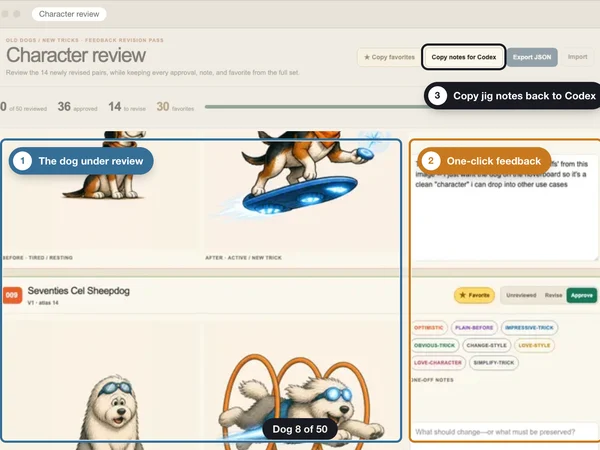
We used one of these standalone app jigs when building our homepage. We needed to generate a bunch of pairs of images of old dogs: matching pairs that included both a dog in a calm, resting state and the same dog in an energized, tool-using, futuristic state.
This required a ton of fast image review, feedback, refinement, and selection to find the dogs we liked that lived up to our image gen standards. So we asked our agent to build a little app for doing just that.
How
- Notice when you’ve got a schlep of work in front of you.
- Let yourself daydream about the tool that’d make things easier.
- Ask your agent to build it, along with an easy “export” to get your jig’s results back into the agent. It’ll figure this out.
See it
 3Copy jig notes back to Codex
 1The dog under review2One-click feedback
- 1Each dog’s before and after drawings, side by side.
- 2Click a tag or type a note.
- 3One button copies every note back to Codex.
Results
Built from one prompt in minutes, this standalone app jig dramatically sped up the image-by-image review, refinement, and regeneration process for 50+ pairs of dog images. Here are four we picked:
Use it yourself
4.Raise your agent’s ambitions
It’s counterintuitively powerful to just naively ask your agent for the most magical thing you can think of.
We made two asks that would’ve been absurd to ask AI months ago. Astra knocked them both out of the park.
See it
YouMake it much much MUCH faster. Keep the look and feel identical. I want absolute blazing speed, it can’t slow down anybody’s computer at all, don’t lose any of the nature of the cell-by-cell simulation we have or any of our carefully tuned behavior. Aren’t GPU shaders a thing can you just do this as some magic GPU shader thing?
Rewrote it as a GPU shader.
14 → 117 fps during fast mouse drags.

Same renderer, limited to 14 fps
Uncapped
YouWhen you hover over a dog and it activates, can it somehow also do a little animation, like part of the dog is coming alive in a subtle way? Make it cute and subtle. I dunno how to do it. Also I don’t want to blow up the page size with tons of animation frames so somehow do this with GPU shader magic.
Animated each dog inside the shader.
Cut each dog into moving parts and wrote five animations into the GPU shader, adding about 77 KB to the page.
Summary
Armed with the right tools and practices, agents can craft beautiful, nuanced, well-designed sites: the opposite of slop. We’re proud of the unique feel of our homepage, which, despite being produced entirely by AI, is deeply ours.
This entire blog post, and its interactive components, was built using the exact same tools.
1.Have your agent draw, then code
Use generative imaging to explore tons of alternative designs, refine your favorites, then let your agent build the chosen one in code and check it against the mockup with screenshots.
- Ask for 5–10 genuinely different design directions using generative imaging, not coding.
- Pick promising directions, ask for refined iterations.
- Let your agent build.
- Ask your agent to use screenshots to compare their work to your chosen mockups.
2.Build an in-app design jig
An in-app widget, a personalized mini-Figma just for your site, that lets you tweak design parameters and watch things update live until it feels just right.
- Ask your agent for a dev-only panel of controls to tweak all sorts of design parameters on the page.
- Keep adding settings to it as you build.
- Ask for an easy way to sync your changed settings back to the committed code.
3.Build a standalone app jig
A standalone app, quickly vibe coded, that speeds up a key workflow. Not a control panel for design tweaks: a workbench for sawing materials.
- Notice when you’ve got a schlep of work in front of you.
- Let yourself daydream about the tool that’d make things easier.
- Ask your agent to build it, along with an easy “export” to get your jig’s results back into the agent. It’ll figure this out.
4.Raise your agent’s ambitions
It’s counterintuitively powerful to just naively ask your agent for the most magical thing you can think of.